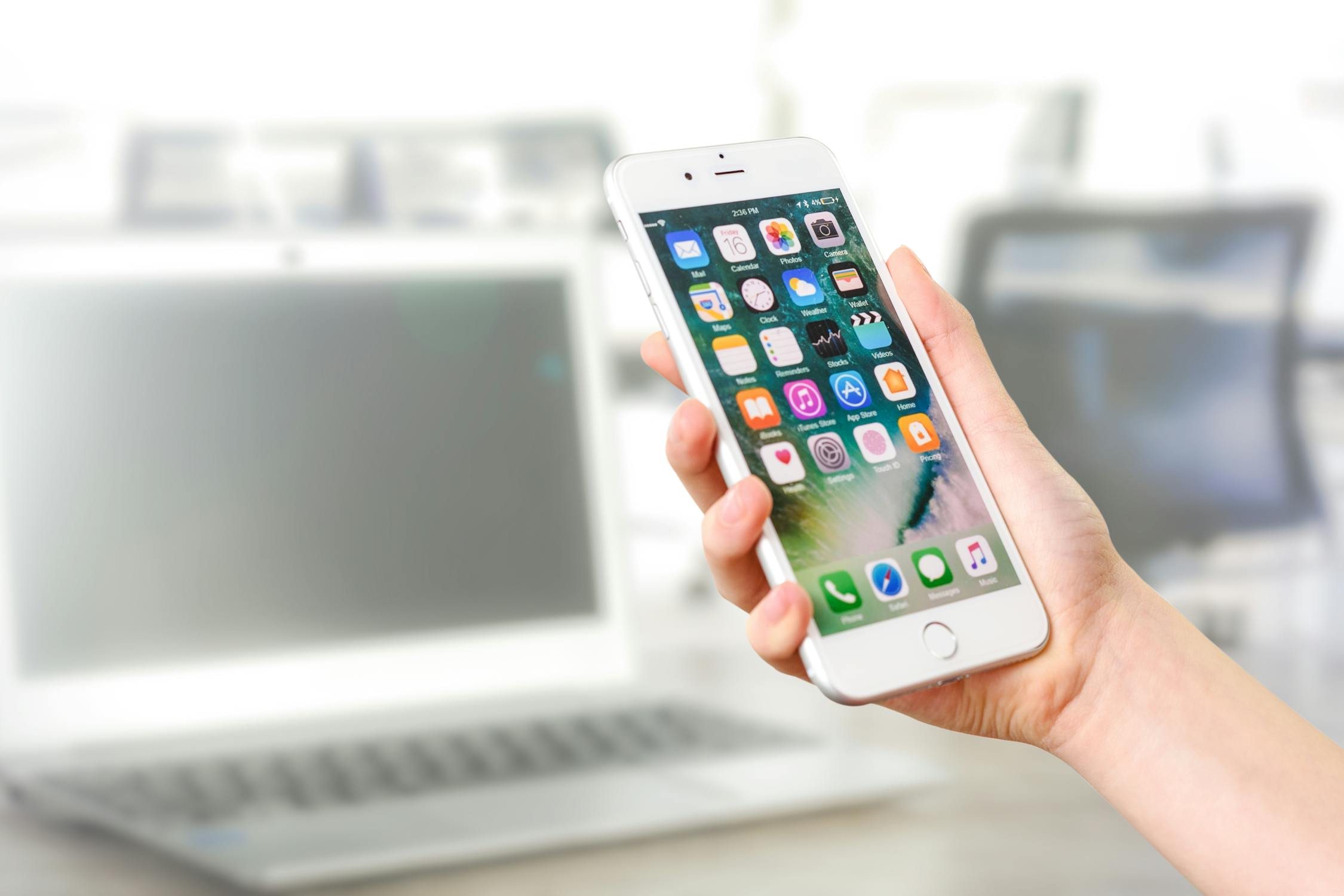
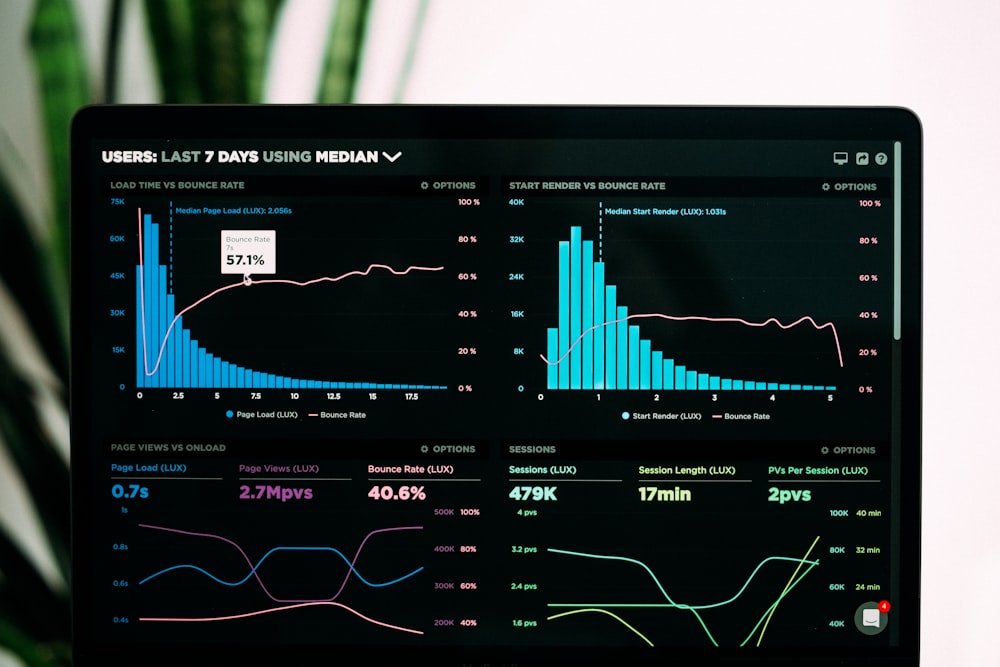
Clear Cache & Speed Up iOS

Is your iPhone feeling slow? Learn how to clear Safari cache and manage system data storage.

Fast iPhone Performance Abstract

iPhones are known for their speed, but over months of usage, digital "gunk" builds up. Old Safari cookies, temporary app files, and the mysterious "System Data" category can clog your storage and make animations feel sluggish.

Unlike Android, iOS doesn't have a "Clear All Cache" button. You have to know where to look. Here are the 4 most effective ways to make your iPhone feel brand new again.

1. Wipe the Safari Cache

This is the biggest culprit for slow browsing. Safari stores website data to load pages faster, but over time, this data becomes outdated and bloated.

How to clear it:

  1. Go to Settings > Safari.
  2. Scroll down and tap Clear History and Website Data.
  3. Select "All History" and tap Clear History.

Note: This will log you out of websites, so make sure you know your passwords!

2. The "Offload App" Trick

iPhone Technology and Settings
Social media apps like TikTok and Instagram cache gigabytes of video data.

If you check your storage, you might see Instagram taking up 5GB of space, even though the app is only 200MB. That is cache. iOS doesn't let you just delete the cache, but there is a workaround.

Go to Settings > General > iPhone Storage. Tap on a large app and select Offload App. This deletes the app file (and the cache) but keeps your documents and data. Then, tap Reinstall App. The cache is gone, but your login info remains.

3. Fixing "System Data" Bloat

Scroll to the bottom of your Storage settings. Do you see a gray bar called System Data taking up 20GB+? This includes temporary logs and index files.

The system is supposed to clear this automatically, but sometimes it gets stuck. The fastest way to force a cleanup is to Sync with a Computer. Plug your iPhone into a Mac or PC and perform a backup. This process triggers iOS to recalculate logs and delete unneeded temporary files.

4. Reduce Motion for Instant Speed

If you have an older iPhone (like an iPhone 11 or 12) that feels sluggish, you can turn off the fancy animations. This makes the phone feel "snappier" because it stops rendering complex transitions.

Go to Settings > Accessibility > Motion and toggle Reduce Motion ON.

5. The Force Restart Method

When was the last time you actually turned your phone off? A restart clears the RAM (Random Access Memory) and kills frozen background processes.

To Force Restart: Press Volume Up, then Volume Down, then Hold the Side Button until you see the Apple Logo. Do this once a week to keep your iPhone running at peak performance.

🚀 Maintenance Tip

Check your storage regularly. An iPhone needs at least 5GB of free space to run smoothly. If your storage is completely full, the operating system has no room to move files around, causing severe lag and crashes.

Lock Down Your Privacy

How to use App Tracking Transparency effectively and set up Stolen Device Protection.

iPhone Security Lock Screen

The saying goes: "What happens on your iPhone, stays on your iPhone." But in 2025, that is only true if you configure your settings correctly. Advertisers, data brokers, and even thieves are constantly trying to access your digital life.

Apple provides industry-leading security tools, but many of them are turned off by default. Here is how to configure your iPhone to be a digital fortress.

1. Turn On Stolen Device Protection

This is the most important security feature Apple has released in years. Before this exists, if a thief saw you type your passcode and then stole your phone, they could reset your Apple ID password and lock you out of your digital life forever.

Stolen Device Protection prevents this by requiring FaceID (biometrics) for critical actions when you are away from home.

Enable it now: Settings > Face ID & Passcode > Stolen Device Protection. Set it to "Always" for maximum security.

2. Stop Apps From Tracking You

Ever notice how you search for "running shoes" in Safari, and suddenly Instagram shows you ads for Nike? That is cross-app tracking.

Apple's App Tracking Transparency (ATT) lets you block this. Go to Settings > Privacy & Security > Tracking. You can turn off "Allow Apps to Request to Track" entirely. This automatically sends a "No" signal to every app you install.

3. How to Lock & Hide Sensitive Apps

Using FaceID on iPhone
iOS 18 lets you lock individual apps behind FaceID.

In iOS 18, you no longer need complex workarounds to protect your banking or photos app. You can lock them individually.

How to do it:

  1. Long-press on any app icon on your Home Screen.
  2. Tap "Require Face ID".
  3. Select "Hide and Require Face ID" if you want the app to disappear from your screen entirely. It will move to a hidden folder in your App Library.

4. Use the New Passwords App

Stop writing your passwords in the Notes app. It is not secure. With iOS 18, Apple introduced a dedicated Passwords app. It syncs across your iPhone, iPad, Mac, and even Windows PC.

It automatically alerts you if one of your passwords has appeared in a data leak. Move your credentials there immediately.

5. Safety Check for Emergencies


If you are in a difficult domestic situation or believe someone has access to your location and data without your consent, Apple built a "Panic Button" called Safety Check.

Go to Settings > Privacy & Security > Safety Check. Tapping "Emergency Reset" will immediately revoke location access for all people and apps, and reset your privacy permissions in one go.

🔒 The Golden Rule

The strongest lock on your iPhone is your Passcode. Avoid using simple codes like "123456" or your birth year. Switch to an Alphanumeric Code (Letters + Numbers) in settings to make your device mathematically impossible to brute-force.

Shoot Photos Like a Pro

Understanding ProRAW, adjusting exposure manually, and using Photographic Styles to get that perfect aesthetic.

iPhone 16 Pro Max Hero

The iPhone 16 Pro is arguably the most popular camera in the world. But 90% of users simply tap the shutter button and hope for the best. While Apple's computational photography is great, relying on "Auto" mode means you are leaving performance on the table.

To truly shoot like a pro, you need to take control of the light and data your sensor is capturing. Here is how to unlock the full potential of your iPhone camera.

1. Why You Must Use ProRAW

By default, your iPhone saves photos as HEIF or JPEG. These files are compressed; the phone decides which details to keep and which to throw away. Apple ProRAW keeps all that data.

The Pro Advantage:

  • Shadow Recovery: You can brighten dark shadows in editing without them turning grainy.
  • White Balance: You can completely change the "temperature" of a photo after you take it.

Enable it here: Settings > Camera > Formats > ProRAW & Resolution Control. Once enabled, tap the "RAW" button in the Camera app before shooting important shots.

2. Mastering Manual Exposure

Have you ever taken a photo of a sunset, but the sky turned white and blown out? That's because the iPhone tried to brighten the dark ground.

How to fix it:

  1. Tap on your subject (the sunset) to focus.
  2. A yellow box with a Sun Icon will appear.
  3. Drag the sun icon DOWN.

This lowers the exposure, making the sky rich and colorful while keeping the foreground moody. This is the #1 secret to "cinematic" looking mobile photos.

3. Photographic Styles vs. Filters

iPhone 16 Pro Max Hero
Styles apply adjustments directly to the image pipeline, preserving skin tones.

Filters apply a color overlay on top of your photo. Photographic Styles change how the camera processes the photo while taking it.

If you prefer the high-contrast look of a Google Pixel, choose the "Rich Contrast" style. If you like the bright, airy look of film, choose "Vibrant." Because these are baked into the pipeline, they won't make skin tones look orange or weird like a cheap Instagram filter.

4. Composition: Turn on the Grid

A messy photo is a bad photo, no matter how good the lighting is. The "Rule of Thirds" is a fundamental photography concept: place your subject on the intersecting lines, not just in the center.

Go to Settings > Camera > Grid and toggle it ON. Use these lines to align the horizon (keep it straight!) and frame your subjects.

5. Nailing the Macro Shot

On iPhone 13 Pro and newer, the Ultra-wide lens doubles as a Macro lens. You can get as close as 2cm to your subject.

The mistake people make is blocking the light. When you get that close to a flower or insect, your phone casts a shadow. Pro Tip: Use the 2x or 5x zoom lens instead, and step back slightly. You get a similar close-up look without blocking your light source.

📸 The Editing Secret

Taking the photo is only half the battle. If you shoot in ProRAW, use an app like Lightroom Mobile or the built-in Apple Photos editor to lift shadows and add contrast. ProRAW files look "flat" initially—they are designed to be edited!

5 Ways to Save Battery Life on Your iPhone

Stop background app refresh, optimize 5G data settings, and identify power-hungry apps to make your iPhone last all day.

iPhone Low Battery Mode

There is nothing worse than looking at your iPhone at 2:00 PM and seeing that dreaded red battery icon. While the iPhone 16 Pro Max boasts the best battery life Apple has ever shipped, iOS 18 is packed with background processes that can sip away your power if left unchecked.

The good news? You don't have to turn your $1,000 device into a brick to get through the day. By tweaking just five specific iOS settings, you can reclaim hours of usage.

1. Kill the Background Drain

This is the #1 silent killer of iPhone batteries. Background App Refresh allows apps like Instagram and TikTok to pre-load content even when your phone is locked in your pocket.

The Fix:

  1. Open Settings > General > Background App Refresh.
  2. Tap the top menu and switch it to Wi-Fi (or turn it Off completely).
  3. Turning this off does not stop notifications. You will still get your iMessages and alerts instantly; apps just won't load new videos in the background.

2. Master 5G Auto Settings

iPhone 5G Usage Outdoors
The Qualcomm modems in modern iPhones are fast, but power-hungry.

5G is incredible for downloading movies, but for scrolling Twitter or sending emails, it's overkill. The 5G modem consumes significantly more power than the LTE modem.

The Fix:

Go to Settings > Cellular > Cellular Data Options > Voice & Data.

  • 5G Auto: Ensure this is selected. It tells iOS to only use 5G when it won't significantly drain battery.
  • 5G On: Never use this. It forces 5G usage even when the signal is weak, destroying battery life.

3. Audit System Location Services

Have you seen the hollow arrow icon in your status bar? That means an app is pinging your GPS. Many non-essential apps (like fast-food apps or retail stores) default to "Always" tracking your location.

Go to Settings > Privacy & Security > Location Services. Scroll down and change non-navigation apps to "While Using" or "Never".

4. The Haptic Keyboard Drain

In iOS 16, Apple finally added haptic feedback to the native keyboard. It feels premium, but Apple has officially stated that it impacts battery life.

If you are a heavy texter, that Taptic Engine is firing thousands of times a day. Turn it off at Settings > Sounds & Haptics > Keyboard Feedback and toggle off Haptic.

5. Identifying "Vampire" Apps

Sometimes, it's not iOS—it's a rogue app. iOS has a built-in "Battery Detective."

Go to Settings > Battery and wait for the graph to load. Look for apps with a high percentage of usage labeled "Background Activity." If an app you barely touched is using 20% of your battery in the background, delete it or force-close it.

⚡ The 80% Rule (iPhone 15 & 16)

To preserve your battery's chemical age, Apple added a hard limit feature. If you usually end the day with 40% left, consider enabling the 80% Limit.

Find this in Settings > Battery > Battery Health & Charging. This prevents the battery from sitting at 100%, which is stressful for Lithium-Ion chemistry.

The Ultimate Camera Test

Comparing the new 5x zoom lens against the Pixel and Galaxy S24.

Smartphone Camera Lens Close Up

The battle for the best smartphone camera is no longer about megapixels; it's about processing, zoom capabilities, and consistency. This year, the iPhone 16 Pro enters the ring with a new 48MP Ultra-wide sensor and the 5x Tetraprism zoom lens across both models.

But is it enough to dethrone the computational wizardry of the Google Pixel 9 Pro or the sheer hardware muscle of the Samsung Galaxy S24 Ultra? We took thousands of photos to find out.

Daylight: The Battle of Color Science


In perfect lighting, all three phones take incredible photos. The difference comes down to stylistic choices.

  • Samsung: Still boosts saturation. The sky is bluer than real life, and grass is greener. It looks "social media ready" straight out of the camera.
  • Pixel: Goes for high contrast and "crunchy" details. Shadows are darker, giving images a dramatic look.
  • iPhone: Remains the most neutral. With the new Photographic Styles in iOS 18, you can finally tweak this default look, but out of the box, it retains the most realistic skin tones.

Zoom Test: 5x vs The World

Photographer using smartphone
Zoom lenses are changing mobile photography forever.

This is where things get interesting. Apple's 5x Tetraprism lens is incredibly sharp. At 5x to 10x magnification, the iPhone produces cleaner images with less noise than the Pixel.

However, once you push past 15x, the Galaxy S24 Ultra still holds the crown. Its AI processing recreates text and details at 30x and 100x that the iPhone simply turns into a watercolor painting. If you are a spy—or just sitting in the nosebleeds at a concert—Samsung wins.

Low Light & Night Mode

The Google Pixel used to own the night, but the gap has closed. The iPhone 16 Pro's larger sensor gathers light exceptionally well.

Where the iPhone wins is shutter lag. Taking a photo of a moving subject (like a pet or child) in low light is frustrating on the Samsung and Pixel due to motion blur. The iPhone captures the moment instantly, freezing motion better than the competition.

Video: Is It Even Close?

Short answer: No.

While Android competitors have improved, the iPhone 16 Pro is still leagues ahead in video recording. The stabilization is gimbal-like, and the transition between lenses (0.5x to 1x to 5x) is seamless. The new Audio Mix feature allows you to isolate voices from background noise in post-production, a tool that content creators will adore.

✅ iPhone Wins
  • Unmatched video quality (4K 120fps).
  • Zero shutter lag in low light.
  • Most consistent color between lenses.
  • Realistic skin tones.
❌ iPhone Loses
  • Extreme zoom (20x+) is weak vs Samsung.
  • Lens flare is still an issue at night.
  • Selfie camera needs an update.

The Verdict: Which Camera Wins?

If you want the most versatile camera that never misses a shot of your kids and takes the best video in the industry, the iPhone 16 Pro is the winner.

However, if you want extreme zoom capabilities for concerts, get the Galaxy S24 Ultra. If you prefer high-contrast, dramatic street photography, the Pixel 9 Pro is your best friend.

Camera Score

9.6/10

The king of video and consistency. It might not win every single niche category, but it is the best all-around camera system you can buy.

See Comparisons on Amazon

iOS 18 Deep Dive

Exploring the new customization features that change how your homescreen looks.

iPhone Home Screen Interface

For over a decade, the iPhone Home Screen has been a rigid grid. Icons snapped to the top left, and you couldn't change their color without complex workarounds.

With iOS 18, Apple has finally broken the grid.

But the update is more than just pretty icons. From a completely redesigned Control Center to the long-awaited arrival of RCS messaging, this is one of the most substantial software updates in iPhone history. We've been testing the beta for months—here is everything you need to know.

Total Home Screen Freedom

This is the feature everyone is talking about. You can now place app icons and widgets anywhere on the screen. Want to leave the middle of your screen open so you can actually see your wallpaper? Now you can.

Apple also introduced a new Tinting feature. If you use Dark Mode, your app icons will automatically shift to a darker hue. Or, you can force all your icons to adopt a specific color (like red or blue) to match your aesthetic. It takes some getting used to, but it allows for setups that were previously impossible.

The New Control Center

iPhone Software Interface
The software feels more fluid and customizable than ever before.

The Control Center is no longer a single static page. It is now a swipeable interface with multiple groups. You can have a dedicated page just for your Music controls, or a page specifically for HomeKit smart lights.

Even better, third-party developers can now create toggles for the Control Center. You can finally put a button for your favorite To-Do list app or your Ford vehicle start button right in the main system menu.

Locked and Hidden Apps

Privacy gets a massive boost in iOS 18. You can now Lock any app behind FaceID. Even if you hand your unlocked phone to a friend to look at photos, they cannot open your banking app or messages without your face scanning again.

For even more privacy, you can Hide apps entirely. They disappear from the home screen and search, living in a hidden folder in your App Library that only opens with biometric authentication.

Messages: RCS is Finally Here

The Green Bubble vs. Blue Bubble war isn't over, but the peace treaty has been signed. iOS 18 adds support for RCS (Rich Communication Services).

This means when you text Android users, you finally get:

  • High-quality photos and videos (no more blurry pixels).
  • Typing indicators.
  • Read receipts.
  • Texting over Wi-Fi.

✅ The Good
  • Icons can finally be placed anywhere.
  • RCS fixes texting with Android friends.
  • Locked apps provide real peace of mind.
  • Control Center is actually useful now.
❌ The Bad
  • Tinted icons can look ugly/hard to read.
  • The new Photos app layout is confusing.
  • Apple Intelligence features are delayed.

The Verdict: Should You Update?

iOS 18 is a visual overhaul that breathes new life into older iPhones. The customization options make your phone feel personal in a way Apple has never allowed before.

While some users might find the new Photos app layout controversial, the privacy features and RCS support make this an essential update for everyone.

Software Score

9.0/10

The most fun iPhone update in years. It finally treats users like adults who can organize their own screens.

Check Device Compatibility

iPhone 16 Pro Review

The Power of the Max, Without the Bulk.

iPhone 16 Pro Natural Titanium

Last year, buying the smaller iPhone 15 Pro meant compromising. You missed out on the 5x zoom lens found on the Max. It felt like the "runner-up" phone.

This year, Apple has fixed that.

The iPhone 16 Pro brings feature parity to the smaller form factor. You get the exact same camera system, the same A18 Pro chip, and the same titanium build quality, but in a size that actually fits in your pocket.

The New 6.3-Inch Display: The Sweet Spot?

Apple has slightly increased the screen size from 6.1 inches to 6.3 inches. By shrinking the bezels even further, the phone itself is barely physically larger, but the extra screen real estate is noticeable.

It feels like the perfect balance. It is large enough to edit photos comfortably and watch YouTube videos without squinting, yet small enough to use one-handed while walking your dog. If the 6.9-inch Max feels like a surfboard, this feels like a precise tool.

Finally: 5x Optical Zoom for Everyone

iPhone Pro Camera System
The tetraprism lens is now fitted into the smaller Pro body.

This is the reason to upgrade. Last year's 3x zoom was good, but the 5x Tetraprism lens is transformative. It allows you to take portraits from a distance that look DSLR-quality.

Combined with the new Camera Control button, the shooting experience is seamless. You can slide your finger to zoom from 0.5x all the way to 5x without touching the screen. It finally feels like a "Pro" camera system.

Battery Life vs The Max

Physics is still physics. While the iPhone 16 Pro has a larger battery than its predecessor, it simply cannot match the endurance of the Pro Max.

In our testing, the iPhone 16 Pro comfortably lasts a full day of heavy use (roughly 7 hours of screen-on time). However, if you are a power user who shoots 4K ProRes video or games for hours, you might need a top-up by 8 PM. The Max will typically last until the next morning.

Why 120Hz ProMotion Still Matters

We mentioned in our Standard iPhone 16 review that the lack of 120Hz was a dealbreaker for some. On the Pro, ProMotion makes everything feel fluid.

The display ramps down to 1Hz to save battery (Always-On Display) and shoots up to 120Hz when you scroll. Once you get used to this fluidity, it is incredibly hard to go back to a standard 60Hz screen.

✅ The Good
  • Finally has the 5x Zoom lens.
  • Perfect 6.3-inch size for one-handed use.
  • 120Hz ProMotion is silky smooth.
  • A18 Pro chip is an absolute powerhouse.
❌ The Bad
  • Battery life is good, but not "Max" level.
  • Gets warmer than the Max during gaming.
  • Price gap with the Standard 16 is significant.

The Verdict: The Perfect iPhone?

For most people, the iPhone 16 Pro is the best iPhone Apple makes. It offers every single "Pro" feature—including the best cameras and the best display—without requiring you to carry a massive brick in your pocket.

  • Buy the iPhone 16 Pro if: You want the absolute best camera capabilities in a phone that is comfortable to hold.
  • Buy the Max if: Battery life is your #1 priority above comfort.

Cupertino Daily Score

9.4/10

The "Goldilocks" iPhone. Not too big, not too small, and finally zero compromises on the camera.

Check Price on Amazon